How to stream a skateboarding contest with a live scoreboard in OBS
Camera, OBS and a scoreboard actually wired to the judging: how to set up broadcast overlays for a skate contest, and the rundown for knowing which graphic to call when.
You've built the contest, you have the judges, you have the camera. You go live on Instagram or YouTube and… nobody watching from home has any idea who's winning. They see a rider doing a run, and that's it. That's the difference between filming a contest and broadcasting one: the live scoreboard.
This guide covers how to do it with OBS (free) and with the scoreboard actually wired to the judging, so nobody has to retype scores by hand while the event runs away from them.
The three levels of production
You don't need the top tier on day one. Each level is a real upgrade on the last:
- Phone only. A live stream from behind the fence. It exists, but the viewer has no context: no name, no score, no standings.
- OBS + overlays. A laptop, a camera (or that same phone as a webcam) and graphics on top: who's skating, what they scored, how the ranking looks. This is the big jump, and it's what this guide covers.
- Multi-camera + a screen at the park. Two or three cameras, a switcher, and the same information projected for the crowd on site.
What you need
- OBS Studio (free, Mac/Windows/Linux). vMix works too if that's what you already run.
- A camera. A DSLR with a capture card, a decent webcam, or a phone acting as a camera.
- Stable upload. Around 5 Mbps of real upload for 1080p. At a skatepark, use ethernet or dedicated 4G/5G before shared wifi.
- A live scoring source — the piece almost everyone skips.
The real problem isn't OBS — it's the scoreboard
Building a scene in OBS is easy. What always breaks is keeping the scoreboard current. The two usual workarounds:
- A text file or a Google Sheet somebody keeps editing. It works for twenty minutes. Once the event speeds up, the scoreboard operator falls behind and what's on screen no longer matches what the announcer just said.
- Hand-built Photoshop graphics for every heat. Beautiful, and impossible to maintain live.
The fix is to have the scoreboard read straight from the judging: when the judges lock a score, the overlay updates itself. Nobody copying numbers.
How OBS overlays actually work (browser sources)
An OBS overlay isn't a video or an image: it's a web page with a transparent background. OBS opens it in an internal browser and composites it over your camera. Because it's a live web page, when the data changes the graphic changes — you never touch OBS.
In practice, adding one looks like this:
- In OBS: Sources → + → Browser.
- Paste the overlay URL.
- Set Width 1920 and Height 1080 (or whatever your canvas is).
- Leave "Shutdown source when not visible" unchecked, so it doesn't reconnect on every scene change.
- Place it above your camera source in the source list.
With Triqs, each contest generates its own overlay URLs and you copy them with one click from Production. They look like this:
https://tricqs.app/broadcast/<your-org>/<contest-id>?gfx=ranking
Change gfx and you get each graphic separately. If you'd rather start simple, there's the full program (?gfx=all): a single browser source that shows and hides the right graphic at the right moment. For a first broadcast, that one is enough.
Which graphics a skateboarding contest actually needs
This is where a generic sports tool falls short. A skate contest isn't a match with two counters ticking up: it's a sequence of runs with scores landing in bursts, and the pacing of your graphics has to follow that pattern.
| Graphic | When you call it | What it solves |
|---|---|---|
| Start list | Before the heat | Viewers know who's up and in what order |
| Heat title | Heat intro | "Street Open · Semifinal 2" — orients the viewer |
| Rider intro | Right before the run | Name, country, photo: introduces the skater |
| Lower third | During the run | Name + live score without covering the action |
| Clock / timer | Timed runs | Tension: how much run is left |
| Score pop | When the score locks | The moment. Score full screen, big |
| Run breakdown | Straight after | Which tricks landed and what each was worth |
| Ranking | Between runs | Where things stand right now |
| Next up | Transitions | Keeps the pace, kills dead air |
| Head-to-head | Duels / best trick | Two riders compared side by side |
| Ticker | Continuously | Results rolling without stealing the frame |
| Sponsors | Continuously / breaks | You deliver for whoever paid for the event |
| Podium / Results | The finish | The closer — and the frame people screenshot |
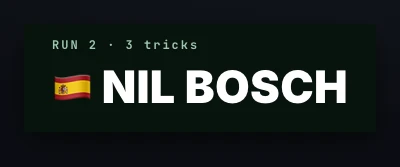
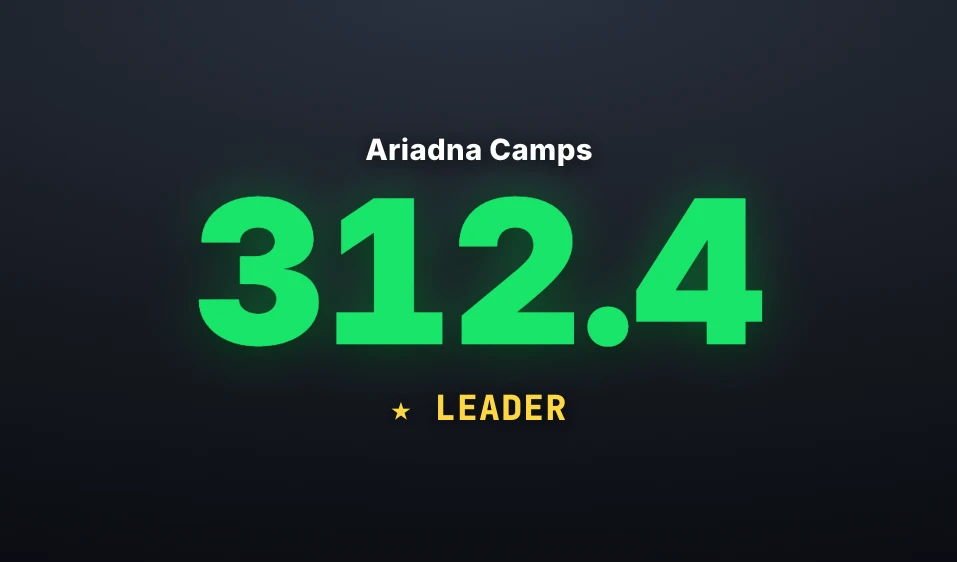
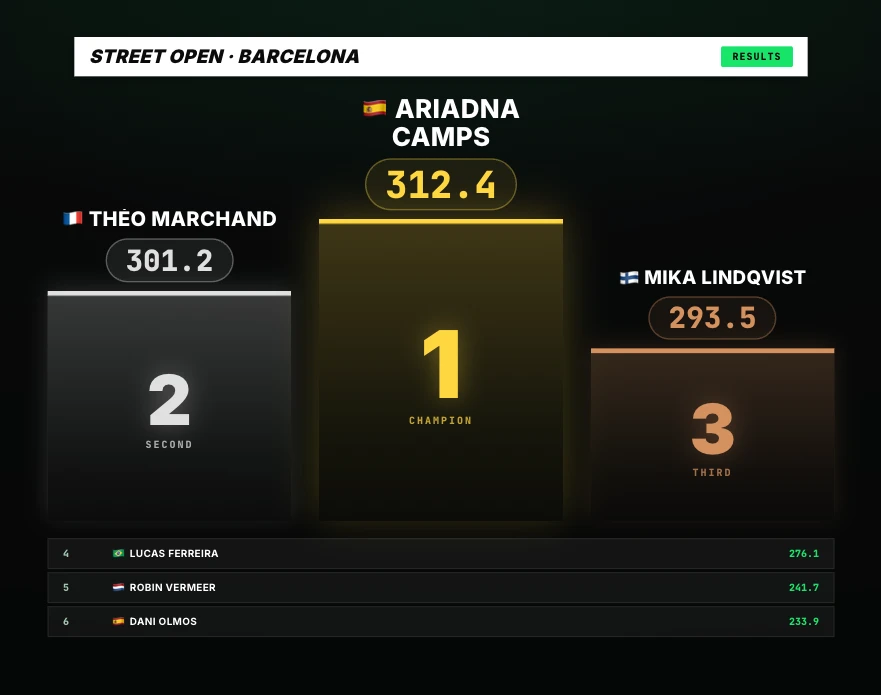
A broadcast rundown that works
If you need a mental running order for a heat, this pattern holds up:
- Before the heat: heat title → start list (about 10 seconds each).
- Rider at the drop-in: rider intro.
- During the run: lower third + clock if the format is timed. Nothing else — let them skate.
- Score locked: score pop, then the run breakdown if it's a trick-based format.
- Between riders: ranking → next up.
- End of heat: full ranking, held a few seconds longer.
- End of category: podium, then a sponsor bumper while the next one sets up.
Making it all look like one show
The tell of an amateur stream isn't camera quality — it's that every graphic looks like it came from a different event. So in Triqs you pick one design for the contest and every graphic follows it. There are six, from dark and minimal to a World Skate-style white bar or high-contrast TV blocks, with an accent colour you can set to your brand or your sponsor's.
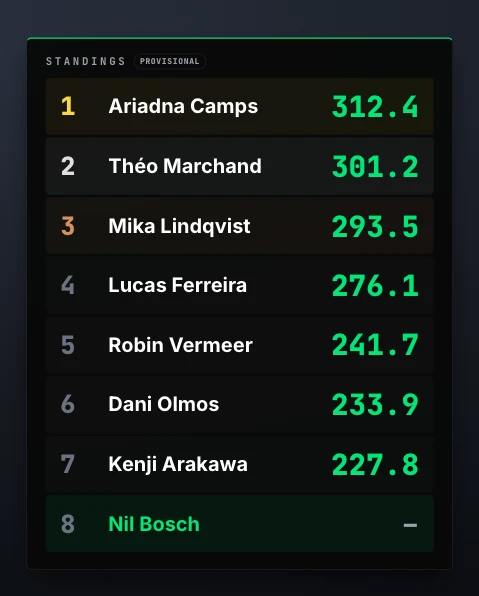
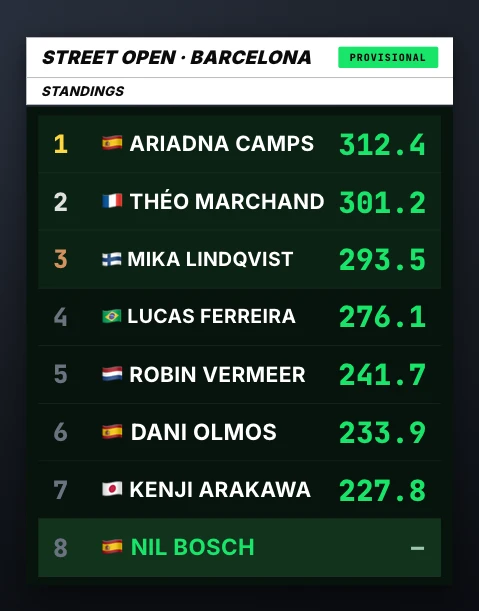
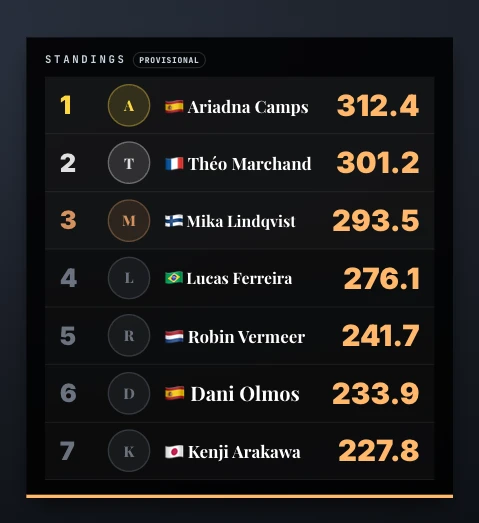
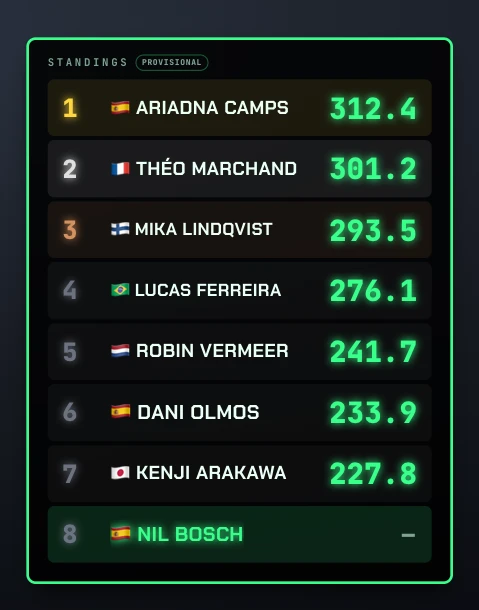
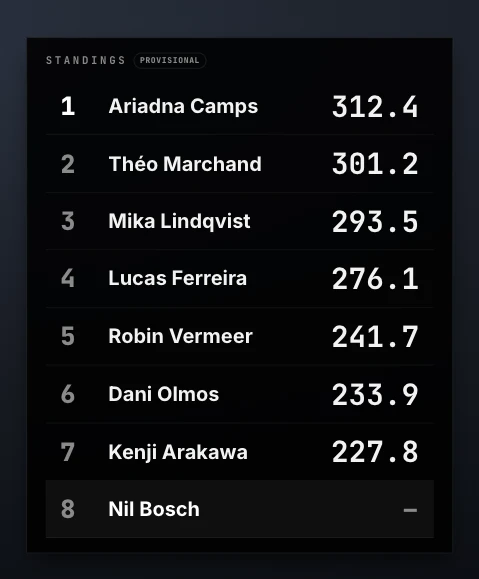
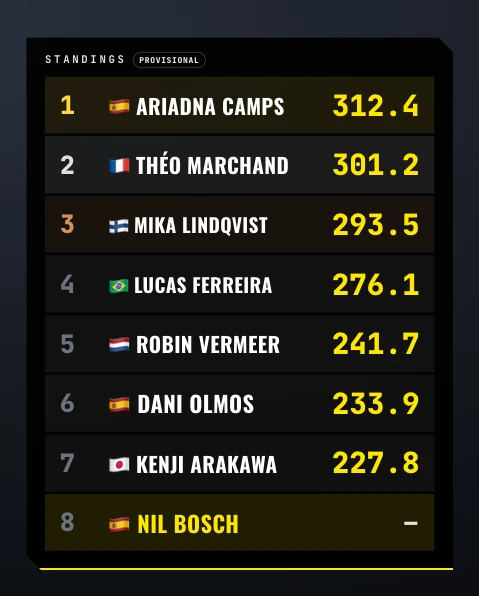
The same ranking in all six designs. You pick one in Setup and every graphic — plus the screen at the park — follows it. Labels run in English, Catalan or Spanish, set in Setup or per source with ?lang=en.
Everything is drawn on a 1920×1080 canvas that scales itself, so the same overlay works for a 720p stream and a 4K production without type shrinking or clipping.
The screen at the park (no OBS at all)
Plenty of grassroots events never stream, but they do have a projector or a TV at the park. Same idea, even easier: open the Screen view fullscreen on a laptop wired to the projector, and the crowd on site sees live scores and standings in the same design you'd use in OBS.
If you're choosing where to start, start here: immediate impact, zero streaming setup.
The mistakes you'll hit on day one
- Skatepark wifi. Failure point number one. Bring backup 4G/5G and, if you can, run ethernet to the streaming machine.
- Mismatched resolution. If your OBS canvas is 1920×1080, the browser source should be too. Mixing resolutions is what makes graphics blurry or cropped.
- Contrast over the video. A concrete park in full sun is a bright background. Solid-bar designs read far better than translucent ones in those conditions.
- Overloading the frame. Ranking + ticker + sponsors + lower third at once and you can't see the skating. One primary graphic at a time.
- Testing on the day. Build your scenes the night before with test data. Ten minutes that save the event.
After the stream: make the contest travel
The stream ends and 90% of the audience you care about never saw it. What they will see is the results on Instagram. Producing a laid-out results image — in the same design you just used live — and posting it before people leave the park is what gets your next event more entries.
Summary
- Broadcasting = camera + OBS + a scoreboard wired to the judging. Without the last part, you're just filming.
- Overlays are web pages: a browser source at 1920×1080, above your camera.
- Start with one overlay (the full program) and add more when you have attention to spare.
- One design across the whole contest, and no graphic over 12 seconds.
- Not streaming? The screen at the park already gets you 80% of the value.
Choosing a tool for the rest of it? See the best skateboarding contest software of 2026, or the head-to-head Triqs vs Liveheats vs JudgeMate.
Triqs puts judging and broadcast graphics in one tool: when the judges lock a score, your OBS overlay and the screen at the park update themselves. Six designs, and we'll set up your first contest with you.